

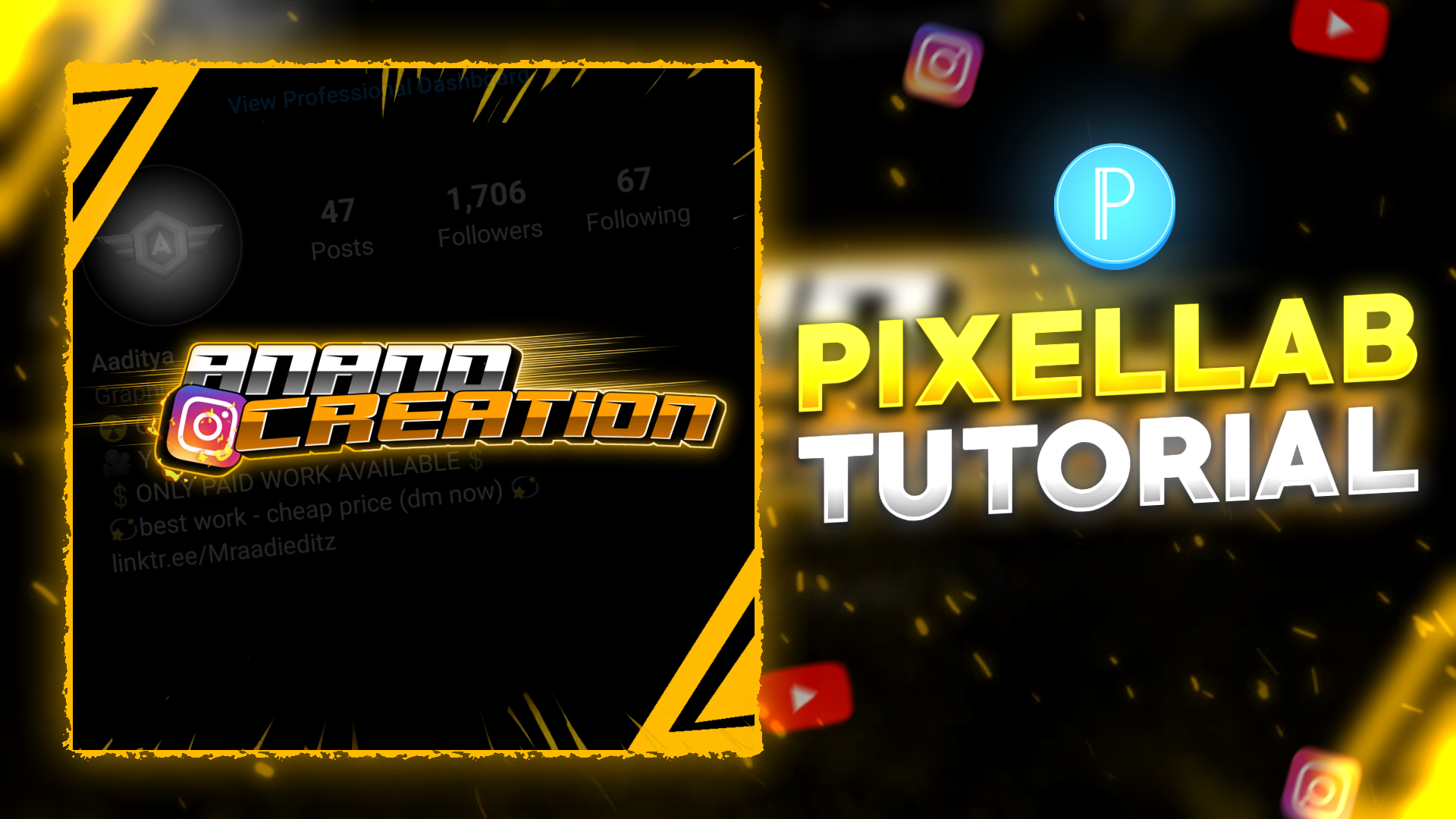
If you have a YouTube channel or Instagram page then you must know the importance of a logo. A logo is a thing which defines the creator. Basically a logo is the first impression of any creator. If you want to grow your YouTube channel or Instagram page then it is necessary to have a professional logo which defines your creativity. In this blog we are going to see how you can make professional logos on android phone. So if you want to create a professional logo for your work then be with us till the end of this blog.
STEP 1
We need a text editing application to make professional logos. Because we are going to create text logos and for that it is necessary to have a good text editing application. And as of my experience pixel lab is the best editing application. We are also going to create our logo with the help of pixel lab application. If you don’t have the pixel lab application on your phone. Then you can simply download it from the below downloadable link.
STEP 2
If you already have a pixel lab application on your phone then I am assured that your application does not support emboss and 3D effect. If it is right then you must change your pixel lab version. Because we are going to use a 3D effect to create our name text logo. So I am suggesting you use the version of the pixel app that I have provided you above. This version has a smooth user interface with the support of emboss and 3D effect.
STEP 3
Now you need to add an Instagram logo PNG if you are creating this professional logo for Instagram or add Youtube logo PNG if you are making this logo for your YouTube channel. To add the Instagram logo PNG click on the plus icon and then select from a Gallery option. I have provided you with the download link of Instagram logo PNG below. You can download it by just clicking the button below.
STEP 4
In case if you are making this professional logo for a YouTube channel then you need to add the YouTube logo PNG. To add the Youtube logo PNG you need to follow the same steps which I have explained in the above step. You can download the Youtube logo PNG from the downloadable link available below.
STEP 5
Adding this screenshot of the Instagram page or for the YouTube channel page enhances the attractiveness of our logo. So you must try to add a screenshot in the background. While doing this make sure that you reduce the opacity of the screenshot to 15%. Add a feather shape PNG behind the logo. This will give a speed effect to our professional logo. Download link of feather shape PNG is given below.
STEP 6
You can also make this logo for any one other by charging them. Nowadays this type of business is very trendy. You may earn some money by making the professional logos for any other creator. Now add fire PNG over the logo present in our text. Adjust the fire PNG with the reference of the logo. The downloadable link of fire PNG is given below. You can download this fire png to make a professional Logon by just clicking the button below.
STEP 7
A perfect frame to our Youtube logo changes the look and enhances the attractiveness of it. I have a frame for this name text logo. To add this frame click on the plus icon available above and then add it. You can download this square frame PNG by just clicking the downloadable link given below.
STEP 8
After following all the steps mentioned above your logo is ready to save. To save the logo just click the save button and save your logo. If you face any problems regarding this logo making, then you can refer to my youtube video. Link is given below.
If you have any queries about today’s blog then feel free to share with us by using the comment box. We will try to solve your queries as early as possible. Thank you for your valuable time.