

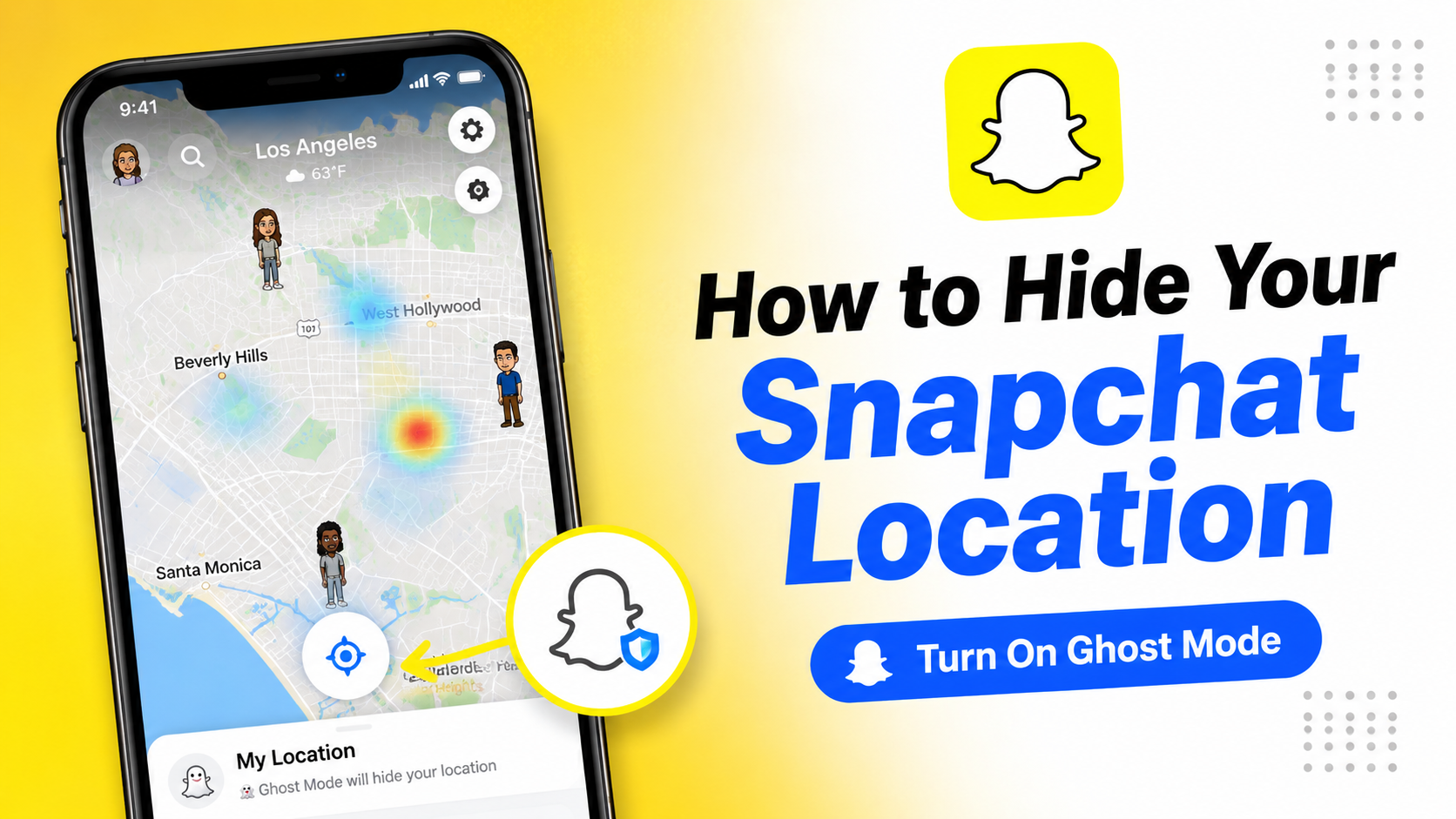
Have you ever opened Snapchat’s Snap Map and suddenly realized that your friends could see where you were? For some people, this is a useful feature. You can see where your friends are, share your location with people you trust or use the map to explore places and Snaps around you. But not everyone wants their location visible.
If you did rather keep your whereabouts private, Snapchat has a feature called Ghost Mode. When Ghost Mode is enabled, your location won’t be visible to other Snapchatters on Snap Map. You can still use Snapchat normally and you can turn Ghost Mode off whenever you want.
In this article, we will show you how to turn on Ghost Mode on Snapchat, how to hide your location from specific friends, what Ghost Mode actually does and what it doesn’t do.
📝Quick answer: Open Snapchat, go to Snap Map → Settings (⚙️) → Ghost Mode and turn it on.
What Is Ghost Mode on Snapchat?
Ghost Mode is Snapchat’s location privacy feature. When you turn it on, your location is hidden from other people on Snap Map. You can still open Snap Map and use the map yourself but your friends won’t be able to see your location there.
Snapchat says that your location can still be shared with Snapchat itself while Ghost Mode is enabled. In other words, Ghost Mode hides your location from other Snapchatters but it isn’t the same thing as completely turning off location access for Snapchat.
This distinction is important because “hide my location” and “stop Snapchat from accessing my location” are two different things.
How to Turn On Ghost Mode on Snapchat
There are two different ways to enable Ghost Mode. You can turn it on directly from Snap Map or you can access the option through Snapchat’s privacy settings.
Method 1: Turn On Ghost Mode From Snap Map
This is probably the quickest method.
- Open the Snapchat app on your Android phone or iPhone.
- Click on the location icon available at the bottom left corner.
- Tap the gear icon (⚙️) at the right side bar of the screen.
- Find Ghost Mode and switch it on.