

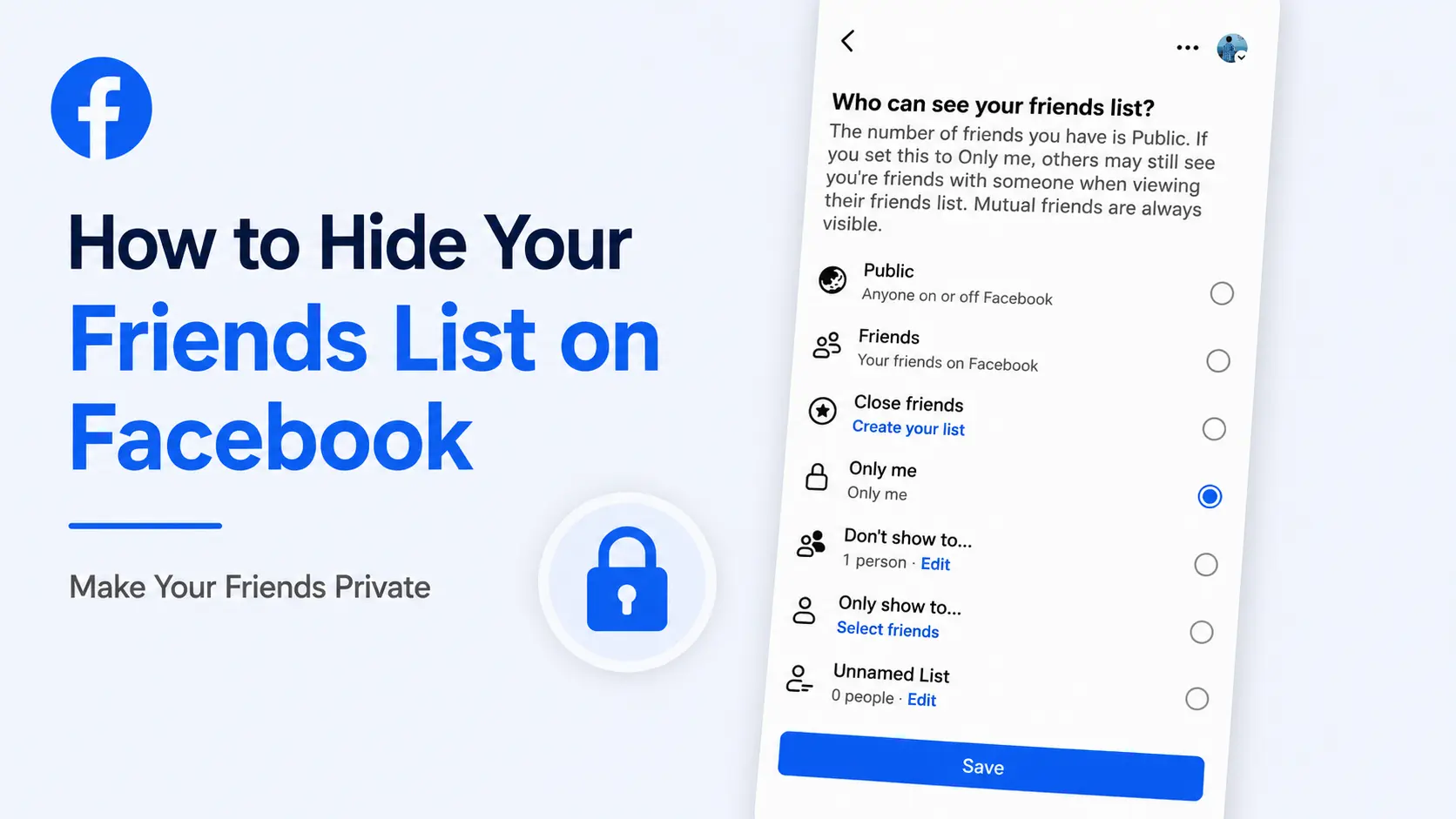
Your Facebook friends list can reveal more about you than you might think. Even if your posts are private, people may still be able to browse the people you are connected with.
The good news is that Facebook (FB) allows you to hide your friends list on Facebook. You can make it visible to everyone, limit it to friends, choose specific people or hide your full friends list from everyone except yourself.
In this blog article, you will learn how to hide your friends list on Facebook using the mobile app and a computer. We will also explain an important limitation, hiding your friends list does not necessarily hide every individual friendship everywhere on Facebook.
📝Quick answer: Go to Facebook Settings → Audience and visibility → How people find and contact you → Who can see your friends list? Then choose Only me if you want to hide your full friends list from everyone else.
How to Hide Your Friends List on Facebook App
You can change your friends list privacy from the Facebook app on both Android and iPhone. The steps to do so are very simple. Exact steps to hide your friends list on Facebook are mentioned below.
🎯Tested by Medzix: We verified these steps using the latest available version of Facebook at the time of writing.
However, the exact position of some buttons may look slightly different depending on your device and Facebook app version but the privacy setting itself is located under Audience and visibility.
Step 1: Open the Facebook app and make sure you are logged into the account whose friends list you want to hide. If you haven’t, enter your login credentials and login to your FB account.
Step 2: Tap on the horizontal three lines available at the top left corner to open the menu. (Depending on your device and version of Facebook, this may appear as your profile picture with menu lines.)
Step 3: Scroll down and tap “Settings & Privacy”, a new menu will open up. Select the “Settings” option.